Mastering Artistry: A Step-by-Step Guide on How to Use Stable Diffusion Img2Img
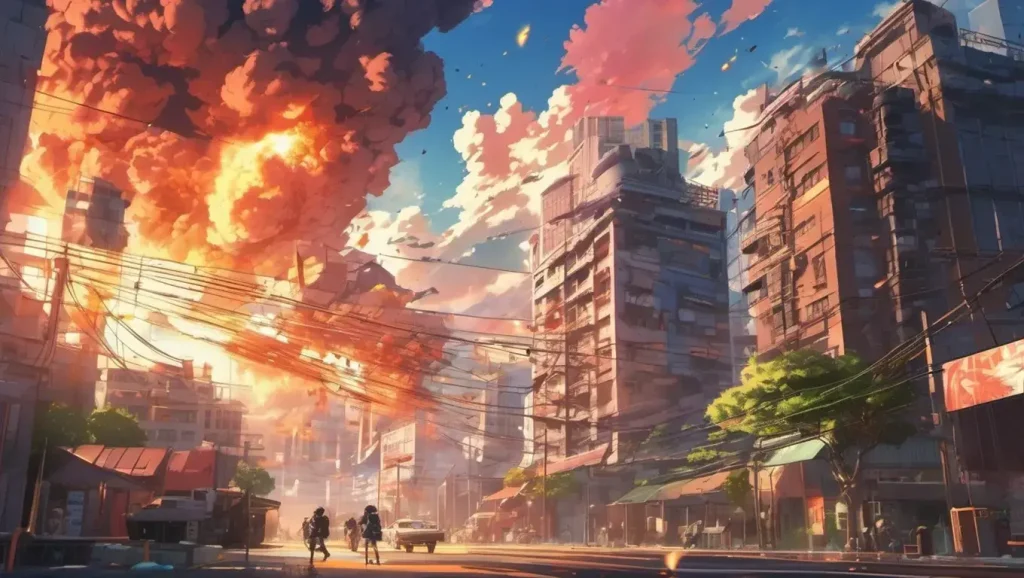
If you’ve ever wondered, “How to use Stable Diffusion Img2Img,” you’re not alone. The world of art is constantly evolving, and with the powerful combination of Img2Img in Stable Diffusion, even those with no innate artistic abilities can transform amateur sketches into visually stunning masterpieces. In this comprehensive guide, we’ll delve into the intricacies of Img2Img, exploring techniques and settings within Stable Diffusion to turn your simple sketches into professional artwork.
Unveiling Img2Img in Stable Diffusion: Elevate Your Drawings
Img2Img in Stable Diffusion is a groundbreaking technique that generates new images from a basic input, focusing on color and composition. It’s not about intricate details but rather the foundation for the final output. The simplicity of the input image is paramount, emphasizing the power of Img2Img in Stable Diffusion to retain original color and composition, making it an invaluable tool for aspiring artists.
Setting Up the Canvas: Software Configuration Made Simple
Navigating through the process becomes seamless with the user-friendly AUTOMATIC1111 GUI, offering an intuitive interface for the Img2Img process. To enhance the experience, enabling the color sketch tool for Img2Img is crucial. Whether through command line or GUI modification, activating this tool unleashes the full potential of Img2Img in Stable Diffusion, making it accessible to all users.
Unleashing Creativity: Using the Color Sketch Tool
Now, let’s dive into the creative process. The color sketch tool, once activated, allows users to upload an image, click on the color palette icon, and use the solid color button. Voila! The canvas is ready for your artistic touch. Drawing in color becomes an effortless endeavor, infusing vibrancy and depth into your sketches, setting the stage for the magic of Img2Img.
Crafting Professional Art: A 3-Step Transformation
Step 1: Setting the Foundation
Begin with a 512×512-pixel black or white background. This serves as the canvas’s foundation, offering a blank slate for your artistic expression.
Step 2: Sketching the Doodle
With the color palette tool in hand, sketch your doodle. Focus on capturing the essence—color, shape, and overall composition. Forget the details; let your creativity flow.
Step 3: The Img2Img Technique
This is where the real magic happens. Choose the v1-5-pruned-emaonly.ckpt from the Stable Diffusion checkpoint dropdown. Craft a descriptive prompt, defining your image’s vision. Adjust parameters, experiment with CFG scale, denoising strength, and hit generate. The result? Four unique images based on your input. Choose the one that resonates with your artistic vision.
Fine-Tuning Your Art: Additional Tips and Tricks
For those seeking perfection, a second round of Img2Img can further refine and enhance details. Experimentation is key—tweak CFG scale, denoising strength, and observe the transformation. The possibilities are endless, and the control Img2Img provides far surpasses traditional text-to-image methods.
Conclusion
Img2Img, fueled by Stable Diffusion, is a game-changer in the art world. With this detailed guide, even those with no prior drawing experience can elevate their sketches to professional-quality art. The flexibility and control offered by this technique open new avenues for creativity, giving artists the power to transform their rough sketches into captivating masterpieces.
Parting Thoughts
Embarking on the journey of using Stable Diffusion Img2Img is a gateway to unleashing your creativity. Whether you’re a seasoned artist or a novice, this technique provides a canvas for limitless possibilities. Watch the tutorial below for a deeper understanding, and let your artistic journey begin!

David White is a seasoned AI enthusiast and tech writer with over a decade of experience in artificial intelligence and machine learning. Specializing in AI prompts and their applications, David’s insights help users harness the power of AI for creative and practical uses. When not writing, David enjoys exploring the latest in AI research and contributing to online tech communities.