
How to Create a ChatGPT Account Guide: Troubleshooting and Step-by-Step
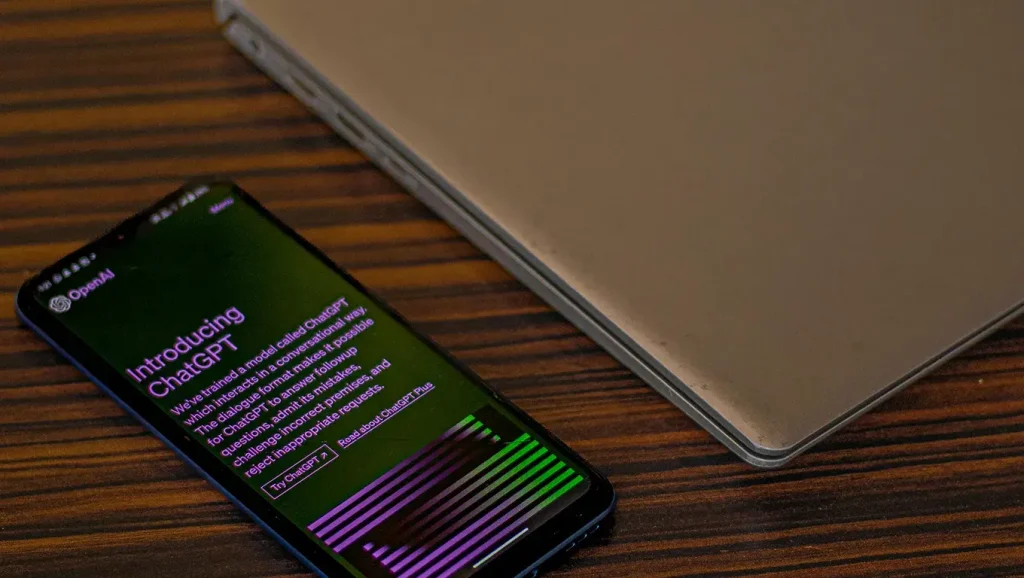
Welcome to our comprehensive guide on creating a ChatGPT account, providing you with step-by-step instructions and troubleshooting tips. If you’re eager to unlock the potential of ChatGPT but find yourself facing hurdles like signup unavailability or login issues, this guide is your go-to resource. Whether you’re a newcomer or encountering problems, we’ll walk you through the process, ensuring a seamless experience. Let’s dive in and explore the world of ChatGPT!
Understanding ChatGPT and Its Significance
Before we embark on the journey of creating a ChatGPT account, let’s briefly understand why this conversational agent is so significant. As a Generative Pre-trained Transformer, ChatGPT utilizes the powerful GPT-4 architecture to facilitate human-like conversations. With millions of users globally, it serves various purposes, from business tasks to creative endeavors. Now, let’s tackle the steps to set up your ChatGPT account.
Step-by-Step Account Creation Process
Step 1: Access the ChatGPT Website
Begin by opening your preferred browser and navigating to the official ChatGPT website at `https://chatgpt.openai.com/auth/login`. If you encounter signup unavailability, be patient, as this can happen due to maintenance or high demand.
Step 2: Locating the Sign-Up Button
Once on the ChatGPT website, look for the “Sign Up” button. It’s usually situated at the top-right or center of the page. Click on it to initiate the account creation process.
Step 3: Choose Between Email or Google Sign-Up
Upon clicking “Sign Up,” you’ll be prompted to choose between email or Google signup. If signup is available, opt for the method that suits you best. Google signup can be faster, but if you prioritize privacy, go for email.
Step 4: Verification Via Email
If you choose email signup, set a secure password (minimum 8 characters) and await a verification email. Check your inbox, including the spam folder, for the email. If it’s delayed or missing, use the “Resend Email” option on the ChatGPT website.
Step 5: Adding Your Personal Information
Enter your first and last name accurately. While nicknames are fun, using your legal name during signup prevents confusion in future interactions.
Step 6: The Phone Verification Step
After entering your name, ChatGPT requires phone verification for added security. Select your country, input your valid phone number, and click “Send Code.” Note that ChatGPT doesn’t support VoIP numbers for this step.
Step 7: Complete Verification with Code
Check your phone for a 6-digit code from ChatGPT via SMS. Enter this code within the specified time limit. If you miss the window or don’t receive the code, use the “Resend Code” option.
Troubleshooting Login Issues
ChatGPT Signup Unavailability: What to Do?
If signup is currently unavailable, it could be due to maintenance or high traffic. Keep checking periodically, or follow ChatGPT on official channels for updates. Patience is key.
Login Issues and Solutions
Encountering login problems? Let’s troubleshoot:
– Verify Your Login Information: Double-check your username and password for typos.
– Check the ChatGPT Server Status: Visit the official website to ensure servers are operational.
– Examine Your Internet Connection: Ensure a stable connection for smooth login.
– Use a VPN: If location-based restrictions are hindering login, try a VPN.
– Clear OpenAI Website Data: Remove old or corrupted data to start fresh.
– Wipe Your Browser’s Cache and Cookies: Clear accumulated data causing issues.
– Disable Browser Extensions: Some extensions may conflict with ChatGPT.
– Restart Your Device: A simple restart can resolve minor technical glitches.
Log In With Your OpenAI Account
To log in, visit `https://chatgpt.openai.com/auth/login` and click the “Log in” button. Choose your preferred login method (email, Google, or Microsoft). Type your password and follow any additional steps.
Account Settings and Additional Tips
Once logged in, explore your ChatGPT account settings for customization. You can find these options in the account menu, usually represented by your name. Adjust your preferences, manage security settings, or explore other features available.
Conclusion
Congratulations! You’ve successfully navigated the process of creating a ChatGPT account and troubleshooting login issues. Now, armed with your ChatGPT login credentials, you can explore its versatile capabilities. Remember, patience and persistence are key, and if issues persist, reach out to ChatGPT’s support for further assistance. Happy chatting!

David White is a seasoned AI enthusiast and tech writer with over a decade of experience in artificial intelligence and machine learning. Specializing in AI prompts and their applications, David’s insights help users harness the power of AI for creative and practical uses. When not writing, David enjoys exploring the latest in AI research and contributing to online tech communities.