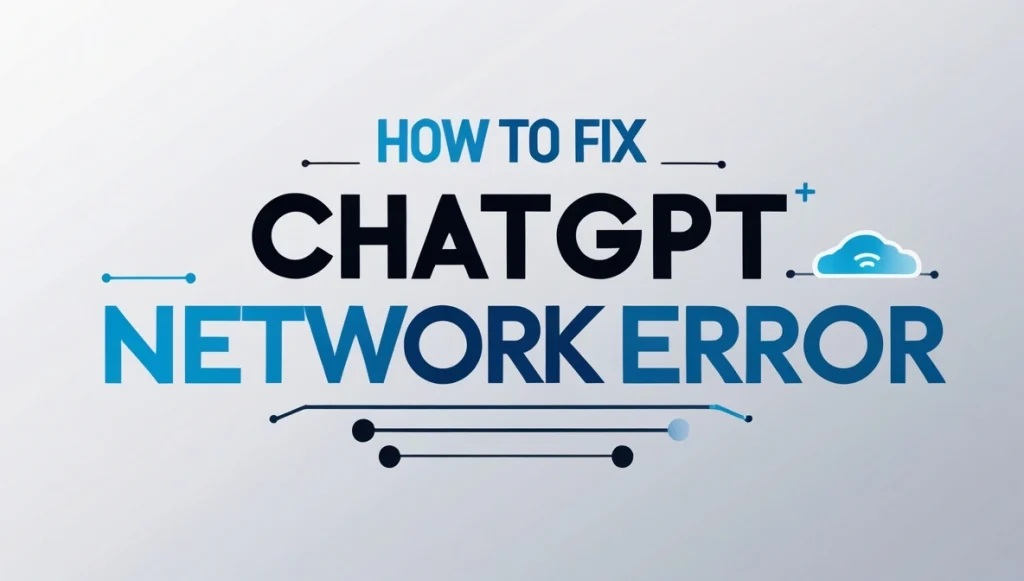
How to Fix ChatGPT Network Error: A Complete Guide
Experiencing a ChatGPT network error while in the middle of a session can be frustrating. Whether you’re asking the chatbot to draft an email, debug code, or assist with research, a sudden interruption can disrupt your workflow.
Fortunately, in most cases, this issue is temporary and can be resolved quickly. In this guide, you’ll learn what causes the ChatGPT network error, how to fix it, and how to prevent it from happening in the future.
Contents
What Causes a ChatGPT Network Error?
A ChatGPT network error happens when the connection between your device and the platform’s servers is lost or disrupted. This interruption can originate from your side (e.g., internet or browser issues) or from OpenAI’s side (e.g., server load or technical maintenance).
Common causes include:
- Server overload or scheduled maintenance
- Unstable or weak internet connection
- Browser conflicts due to cache, cookies, or extensions
- Overly long or complex prompts that trigger timeouts
- Session expiration due to inactivity
Understanding these triggers helps in applying the correct solution.
How to Fix ChatGPT Network Error (Step-by-Step)
If you’re seeing a ChatGPT network error, try the following steps to restore access and continue your conversation smoothly.
1. Wait and Retry After a Few Minutes
If the platform is undergoing high traffic or maintenance, a network error may appear temporarily. In such cases, waiting for a few minutes and then refreshing the page may solve the issue without any effort on your part.
2. Check and Restart Your Internet Connection
A slow or unstable internet connection is one of the most common reasons for network-related errors.
Try these quick steps:
- Disconnect and reconnect to your Wi-Fi or mobile data
- Restart your modem or router
- Move closer to the router if the signal is weak
- Close background applications that are using bandwidth
A stable connection ensures uninterrupted communication with the chatbot.
3. Clear Browser Cache and Cookies
Over time, your browser may store outdated or conflicting data that interferes with websites, including ChatGPT.
To fix this:
- Clear your browser’s cache and cookies
- Restart the browser after clearing
- Try opening ChatGPT in incognito/private mode
- Use a different browser if the issue continues
This helps resolve any browser-level conflicts that may be causing errors.
4. Try the ChatGPT Mobile App
If you’re using a browser and repeatedly getting a ChatGPT network error, consider switching to the mobile app. Many users report better stability and fewer interruptions while using the app version of ChatGPT.
Simply download the app, log in to your account, and resume your session.
5. Simplify or Shorten Your Prompts
If you send long or complex prompts, ChatGPT might struggle to process them, especially when demand on the server is high. This can lead to a network error or an incomplete response.
Here’s how to avoid it:
- Break large requests into smaller parts
- Ask for one section at a time
- Use clear and concise instructions
Simplifying your queries not only prevents errors but also improves response quality.
6. Restart the Session
If the problem persists, restarting the session may help. Sometimes, session tokens expire or get corrupted, causing communication failures.
What to do:
- Close the ChatGPT tab and open a new one
- Log out and log back in
- Start a new conversation thread
This resets the session and clears potential issues affecting communication.
7. Use Another Device or Platform
If none of the above steps work, try accessing ChatGPT from a different device. For example, if you’re on a laptop, switch to your smartphone or tablet. Likewise, switching between the app and browser versions may reveal where the issue lies.
This helps isolate whether the problem is device-specific.
Tips to Prevent Future ChatGPT Network Errors
Once you’ve resolved the issue, it’s wise to follow best practices to prevent it from happening again:
- Use a reliable, high-speed internet connection
- Avoid leaving sessions idle for long periods
- Keep your browser or app updated
- Clear your cache periodically
- Avoid sending overly long prompts in a single message
These habits will ensure more reliable and productive sessions with ChatGPT.
Final Thoughts
A ChatGPT network error can seem like a roadblock, but it’s usually nothing serious. Whether caused by connectivity issues, long requests, or platform-side hiccups, the steps provided above will help you fix the problem efficiently.
By understanding the potential causes and knowing how to respond, you can quickly regain access and get back to your work without major interruptions.
The next time you face a ChatGPT network error, stay calm, apply these solutions, and continue your AI-powered tasks with confidence.
For a deeper look at the environmental impact of AI tools like ChatGPT, check out this detailed guide on whether ChatGPT is bad for the environment.
FAQs
Why is ChatGPT not working on my internet?
If ChatGPT isn’t working on your internet connection, it’s likely due to a weak or unstable signal, network restrictions, or firewall settings. Try restarting your router, switching to a different network (like mobile data), or disabling VPN/proxy services. If the issue persists, check if other websites are slow or not loading, which may indicate a broader internet issue on your end.
Why is my ChatGPT saying error?
Your ChatGPT session may display an error due to various reasons such as server downtime, high traffic, a corrupted session, or internet connection problems. It can also happen if your prompt is too long or complex. Refreshing the page, simplifying your input, or checking your connection can often resolve the issue.
Why is ChatGPT not working?
ChatGPT might not be working because of temporary server-side problems, browser issues, or connection errors. It’s also possible that you’re using an outdated app version or that browser extensions are interfering. Try logging out, clearing your cache, or switching devices or browsers. If the platform is down, waiting for a while and trying again usually helps.
How to resolve network connection error?
To resolve a ChatGPT network connection error:
1- Restart your internet connection (Wi-Fi or mobile data)
2- Clear your browser’s cache and cookies
3- Use a different browser or switch to incognito mode
4- Try the ChatGPT mobile app
5- Keep your session active to avoid timeouts
If the issue continues, it might be due to temporary server-side problems, so check again later.

David White is a seasoned AI enthusiast and tech writer with over a decade of experience in artificial intelligence and machine learning. Specializing in AI prompts and their applications, David’s insights help users harness the power of AI for creative and practical uses. When not writing, David enjoys exploring the latest in AI research and contributing to online tech communities.